📂 The Universal File Opener: Supported Formats & Smart Previews
PhenoCapture AI’s Open tool is designed to be your unified gateway for importing data. Instead of just handling standard pictures, it intelligently recognizes complex document types—like PDFs, Photoshop files, and MS Office documents—and automatically routes them to specialized previewers, giving you total control over how your files are imported into your workspace.
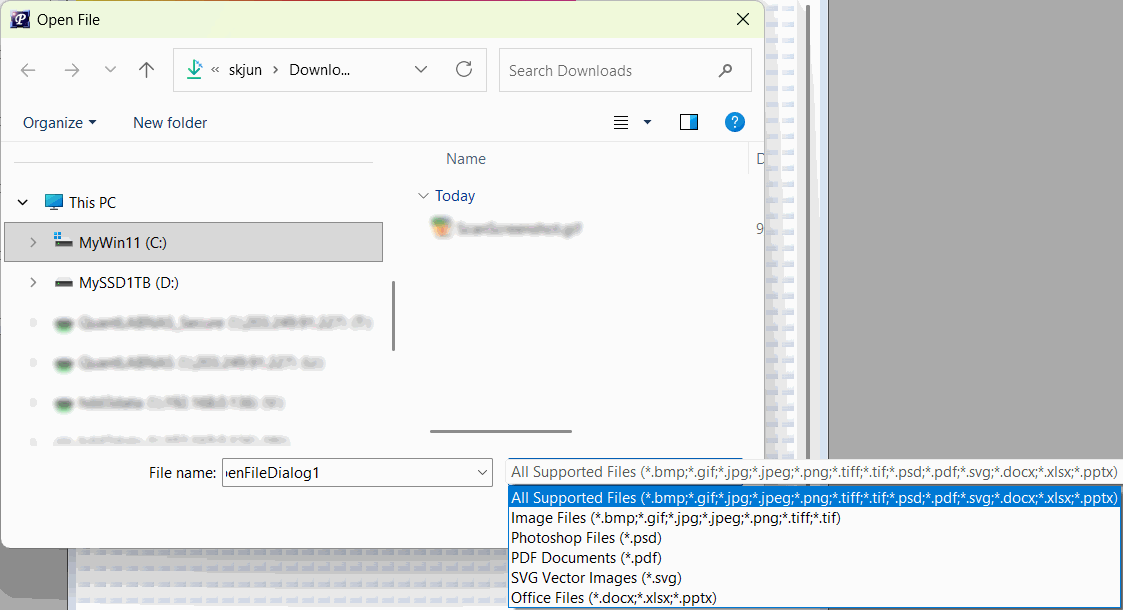
💡 Key Features
- Universal File Support: Use a single, unified file dialog to open everything. The tool supports standard images (BMP, JPEG, PNG, TIFF, GIF), Vector Graphics (SVG), Photoshop Files (PSD), PDF Documents, and MS Office Files (DOCX, XLSX, PPTX).
- Smart Preview Routing: The software analyzes your file extension and automatically launches the correct environment:
- PSD Previewer: Opens layered Photoshop files in a dedicated viewer.
- PDF & Office Previewers: Opens multi-page documents and provides dedicated DPI selection and Import controls so you can extract exactly the resolution you need.
- SVG Previewer: Opens vector graphics with custom scale and import options.
- Safe Image Loading: For standard images, the tool automatically checks the image size against system memory limits to ensure smooth performance before loading it onto the main drawing board.
- Seamless Workspace Integration: Once a standard image is loaded, it is instantly integrated into your undo/redo history, and all relevant image analysis engines are automatically updated.
🛠️ How to Open and Import Files
Getting your files into PhenoCapture AI is quick and intuitive:
Step 1: Launch the Open Dialog
Click the Open menu. The file browser will automatically remember the last folder you used, saving you time when working with batches of images.
Step 2: Select Your File
Use the convenient Filter dropdown at the bottom of the window. You can view All Supported Files at once, or narrow it down to specific categories like PDF Documents (*.pdf) or Office Files. Select your file and click Open.
Step 3: Import or Preview
What happens next depends on the file you chose!
- For Standard Images (JPG, PNG, etc.): The image will load instantly onto your main workspace, ready for immediate analysis.
- For PDFs or MS Office Files: A specialized preview window will appear. Use the DPI Dropdown to set your desired resolution, and then click the Import button to bring the rendered document into your workspace.
- For SVG or PSD Files: The respective previewer will launch, allowing you to review the vector or layered image before finalizing the import.