✨ A Complete Guide to the Erode Outline Tool
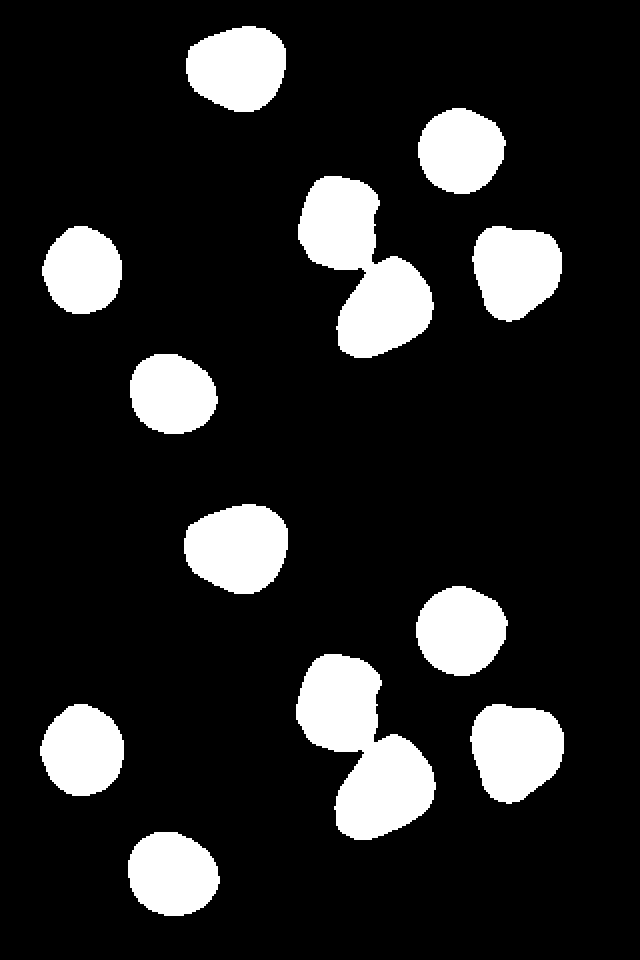
PhenoCapture AI’s Erode Outline tool is a specialized morphological feature designed to shrink and thin object boundaries. Unlike standard erosion filters that use a block matrix (like 3×3 or 5×5), this tool meticulously scans your shapes and shaves off exactly one pixel of thickness from the outer boundaries. It is the perfect tool for precise, single-pixel thinning and refining object perimeters.
💡 Key Features
-
- Precise 1-Pixel Boundary Erosion: The algorithm uses a highly optimized “Gather” approach. It checks the top, bottom, left, and right neighbors of every pixel. If a pixel touches a different color, it is instantly recognized as an outline and converted to the background color (Black).
- Automatic Binarization & Binary Support: While built specifically for analyzing binary (black-and-white) shapes, the tool features a high-speed internal auto-binarization engine. This means you can apply it directly to color images as well, ensuring that the structural integrity of your shapes is maintained while cleanly stripping away the outermost layer.
- Smart Regional Masking: Need to thin out just one specific object? Draw a selection boundary! The tool will safely restrict its boundary-checking logic to the inside of your mask, ensuring no accidental erosion happens outside your selected area.
- High-Speed Memory Optimization: While it runs a sequential scan, it bypasses standard UI bottlenecks by directly accessing the memory arrays (
\_SrcPixels), guaranteeing rapid execution even on high-resolution binary maps. - Seamless Undo Integration: Connected directly to PhenoCapture AI’s built-in undo engine, allowing you to instantly revert the 1-pixel outline erosion if needed.
🛠️ How to Use the Erode Outline Tool
Step 1: Prepare Your Image and Mask (Optional)
Ensure your image is loaded into the main workspace. Because the tool automatically runs an internal binarization algorithm, you can use either a color image or a pre-processed binary image. However, for strictly precise morphological analysis, we highly recommend perfectly isolating your objects beforehand using our dedicated high-performance binarization tools: Manual Binarization, Adaptive Binarization, Binarization and Segmentation, or Custom Binarization.
If you only want to erode a specific object or region, use the advanced selection tools to draw your mask boundary. If no mask is active, the tool will process the entire image.
Step 2: Apply the Tool
Navigate to the menu and click on Erode Outline.
Step 3: View the Result
The software will instantly scan the image, locate the exact outer pixels of your bright objects, and change them to the background color. Your objects will immediately appear exactly 1 pixel thinner. Use the Undo shortcut to easily compare the “before and after” shapes!