✨ A Complete Guide to the Outline Tool
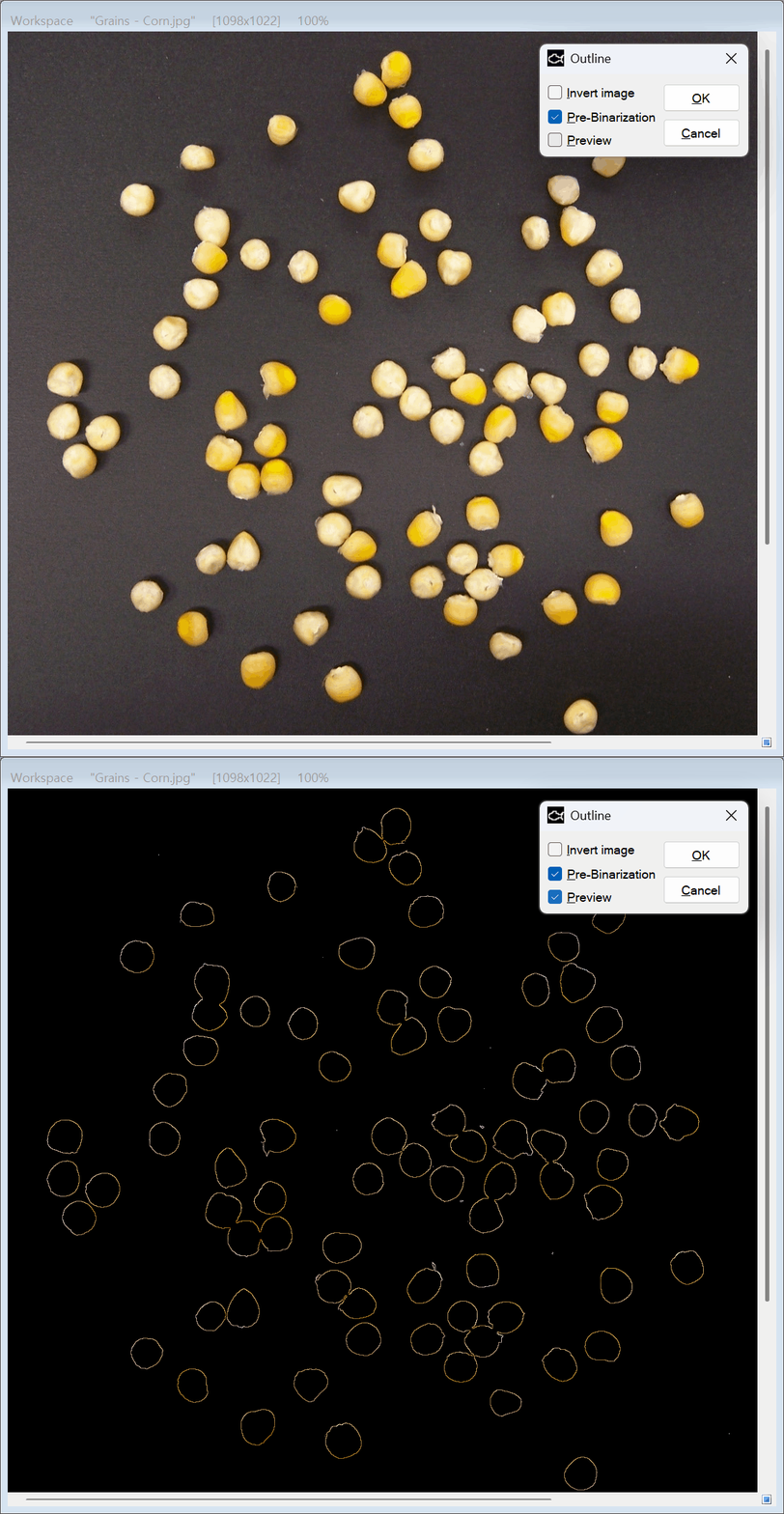
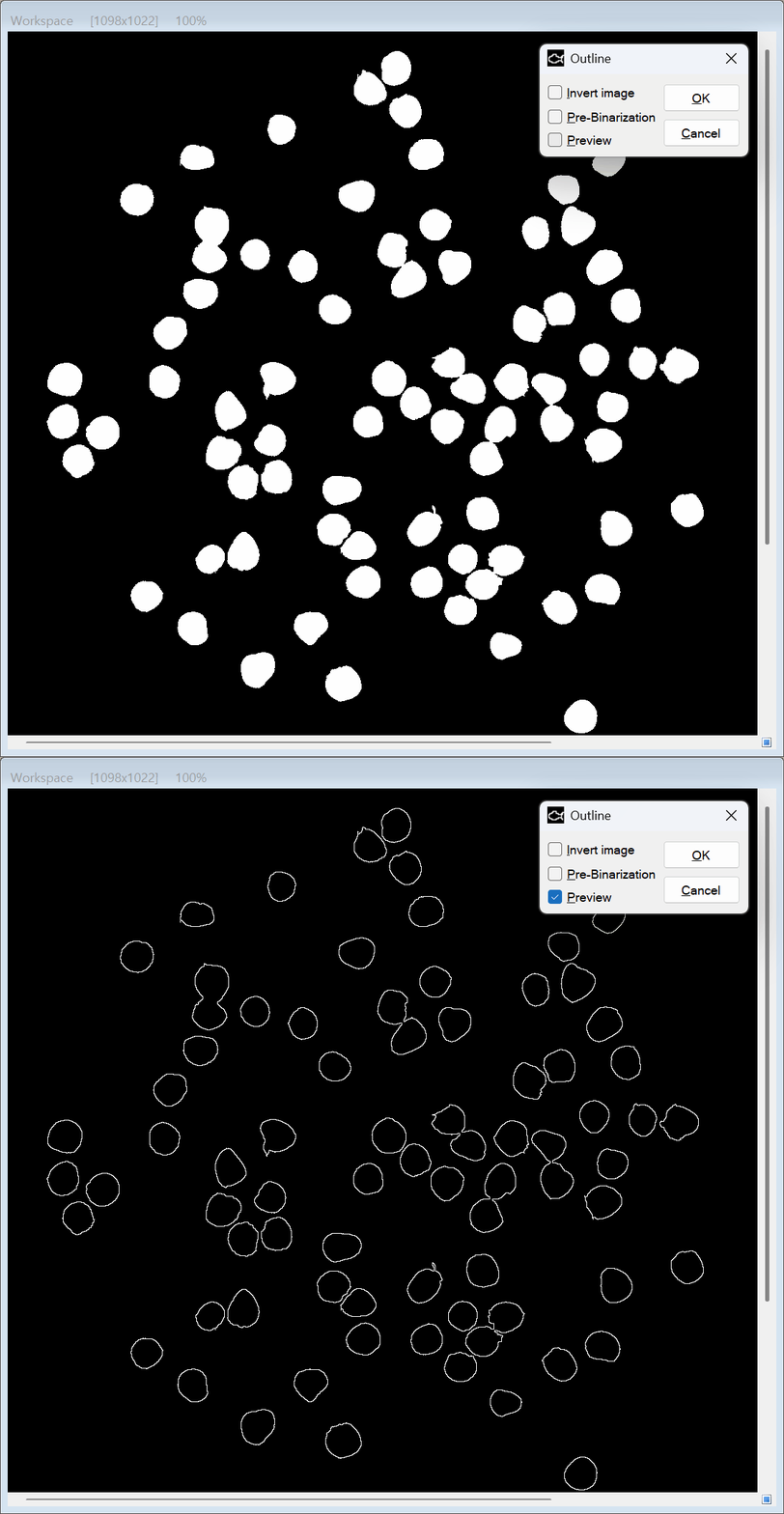
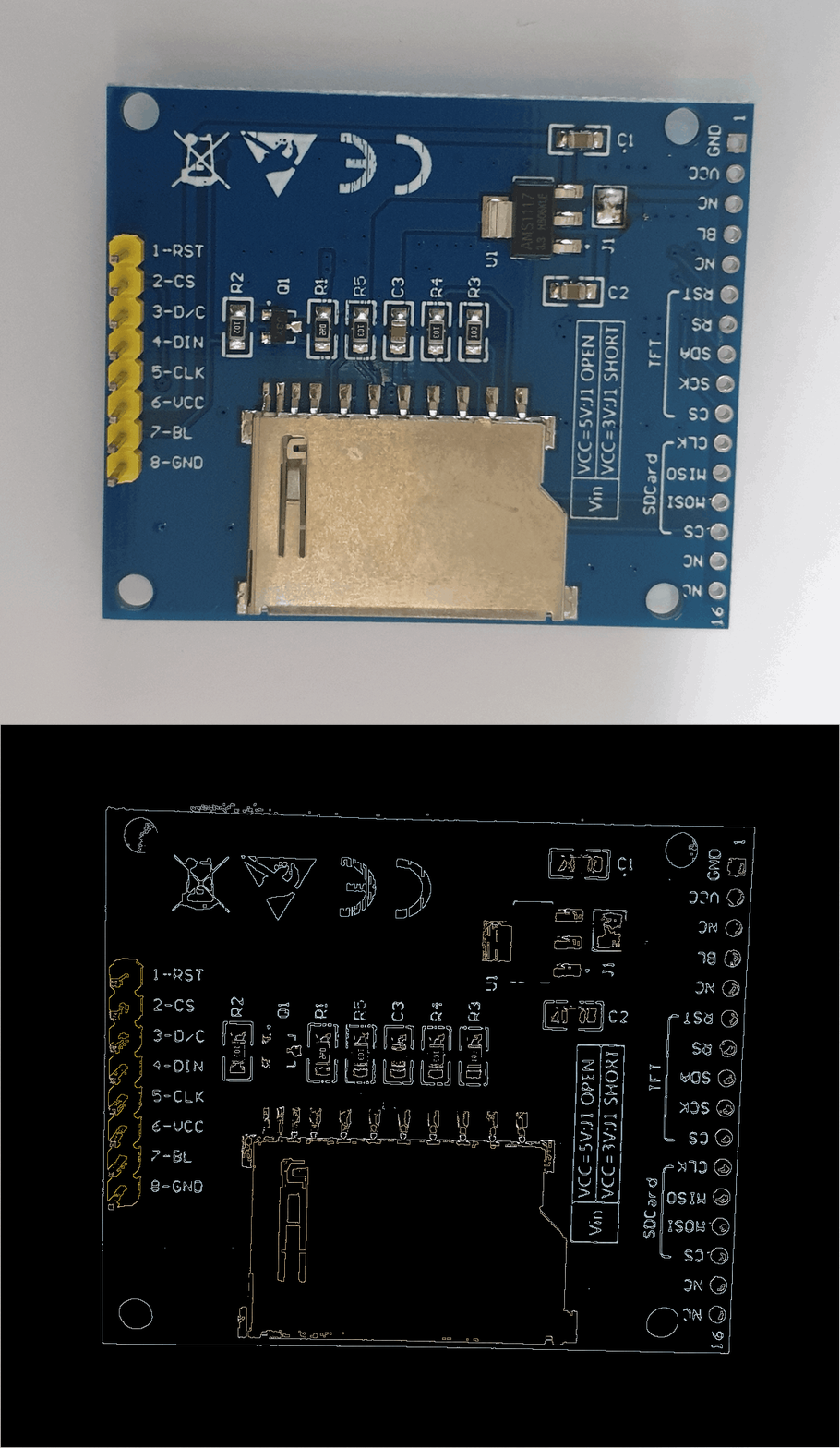
PhenoCapture AI’s Outline tool is a specialized morphological feature designed to extract the precise boundaries of objects across binary, full-color, and region-colored (labeled) images. By intelligently analyzing 8-connected pixel neighborhoods, this tool strips away the solid interior of an object and leaves behind a crisp, 1-pixel-thick boundary while faithfully preserving the original pixel colors along the extracted edges—making it perfect for particle analysis, multi-object tracking, shape measurement, and edge detection.
💡 Key Features
- 8-Connected RGB Neighborhood Extraction: The algorithm scans the image using a 3×3 (8-connected) pixel matrix. If a pixel is completely surrounded by neighbors with the exact same state or RGB color, the tool determines it is “inside” the object and hollows it out to the background color, flawlessly isolating only the outer boundary.
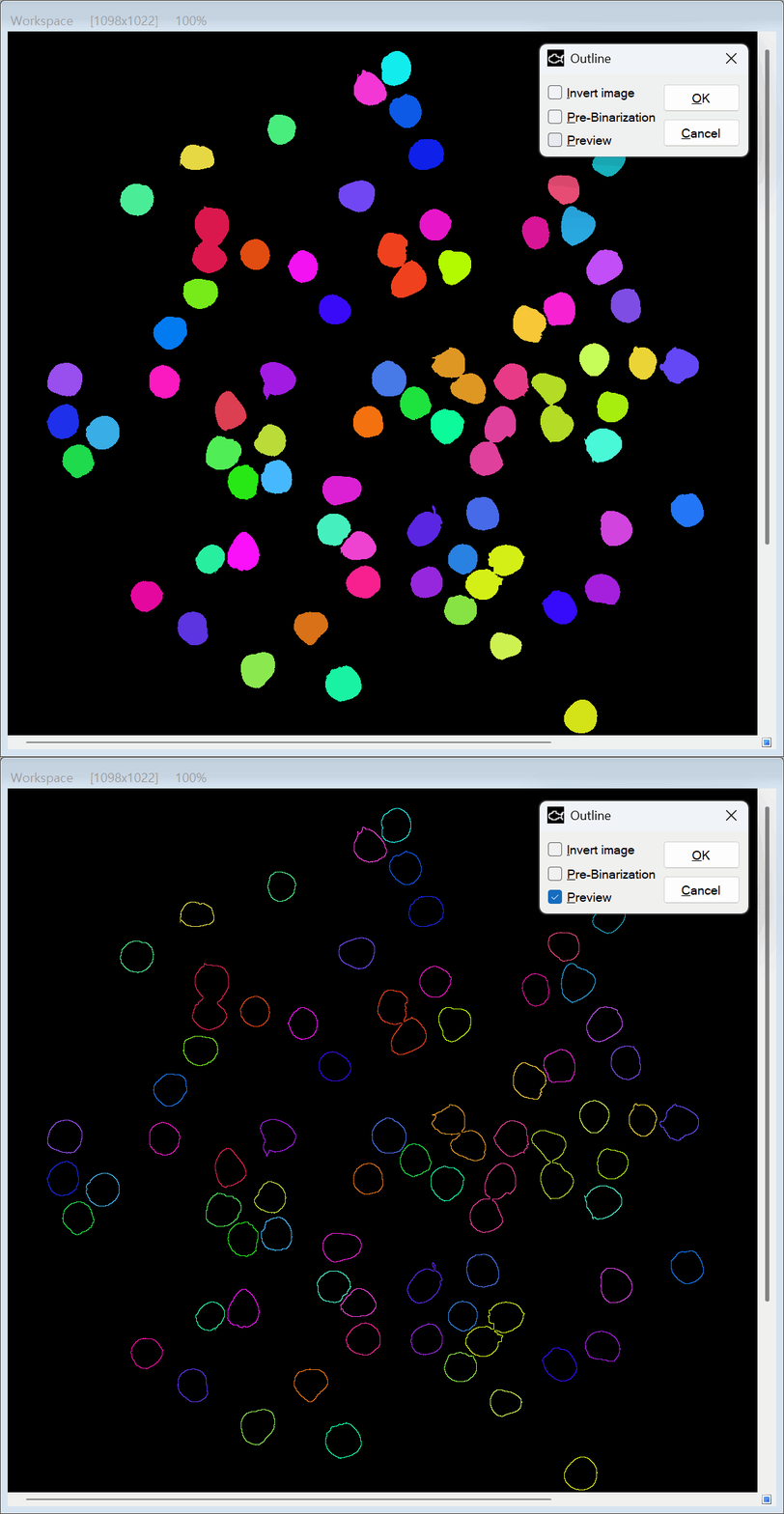
- Original Color Preservation & Region Coloring Support: Whether you are working with a standard binary image, a raw color image, or a multi-color labeled map generated by the Region Coloring tool, the Outline engine preserves the exact original RGB colors on the extracted contours. Every individual blob retains its unique color identity along its 1-pixel boundary.
- Flexible Pre-Binarization Control (Apply Binarization): Choose how the engine detects boundaries depending on your image type. Enable Pre-Binarization to apply fast threshold-based foreground detection on standard grayscale or color photos while still painting the resulting outlines with their original pixel colors. Disable Pre-Binarization when working with Region Coloring outputs to skip thresholding entirely—ensuring every non-zero colored blob (regardless of brightness) and boundaries between touching regions are 100% preserved without any threshold loss.
- Zero-Lag Real-Time Preview: See your binary or color-coded outlines generated live on the canvas at any zoom level. Simply toggle the Preview box to instantly verify your boundaries and adjust settings—such as Pre-Binarization and Invert Image—before locking in the changes.
- Thread-Safe Parallel Processing: Built for extreme speed, the tool separates working buffers from read-only source color buffers within localized memory. This allows PhenoCapture AI to safely unleash your CPU’s multi-core parallel processing capabilities without any thread collisions, even on massive high-resolution images.
- Smart Regional Masking (ROI Optimization): Do you only need to outline a specific object in a crowded image? Simply draw a selection boundary! The Outline tool constrains processing strictly to your custom mask’s bounding box, applying boundary extraction exclusively to your targeted area while leaving the rest of the image untouched.
- Seamless Undo Integration: Connected directly to PhenoCapture AI’s built-in undo engine, allowing you to instantly reverse the outline generation if you need to adjust your mask or try a different segmentation technique first.
🛠️ How to Use the Outline Tool
Step 1: Prepare Your Image
The Outline tool seamlessly adapts to binary, color, and region-colored images:
- For Standard Color or Grayscale Images: You can run the Outline tool directly by keeping Pre-Binarization enabled, which performs fast internal thresholding to locate object boundaries while coloring the outlines with your original image pixels. However, for maximum segmentation control on complex backgrounds, we recommend pre-processing your image using our dedicated binarization tools: Manual Binarization, Adaptive Binarization, Binarization and Segmentation, or Custom Binarization.
- For Region-Colored (Labeled) Images: If you have already segmented and color-coded individual blobs using the Region Coloring tool, no further preparation is needed—the Outline tool can trace every single colored region directly without losing darker-colored blobs.
Step 2: Draw a Selection Mask (Optional)
If you only want to outline a specific cluster of cells or a single object, use the advanced selection tools to draw a boundary around it. If no mask is active, the tool will automatically process the entire workspace.
Step 3: Configure Options & Enable the Preview
Navigate to the menu and open the Outline tool. Check the Preview box to watch the engine instantly carve away solid interiors right on your canvas, then fine-tune the options for your workflow:
- Pre-Binarization (Apply Binarization): Keep this box checked for standard grayscale or color images to detect object shapes via thresholding while retaining original pixel colors on the outline. Uncheck this box when outlining a Region Coloring image so the engine bypasses thresholding and extracts 1-pixel color contours from all non-zero blobs—even darker shades or adjacent touching regions.
- Invert Image: Check this box if your target objects are dark on a bright background to flip the foreground/background detection logic on the fly.
Step 4: Generate the Outline
Once you are perfectly satisfied with the live preview, simply click OK. The engine will apply the changes permanently, transforming your solid binary or colored shapes into crisp, hollow outlines! For larger images or batch workflows processed without the preview, a smooth progress tracker will keep you updated.