✨ A Complete Guide to the Skeletonize Tool
PhenoCapture AI’s Skeletonize tool is a highly advanced morphological feature designed to reduce binary (black and white) shapes to their bare skeletal backbone. By intelligently peeling away the outer layers of a shape until it is exactly 1-pixel thick, this tool is absolutely essential for analyzing networks, tracking branch structures, and extracting the topological centerline of complex objects.
💡 Key Features
- Zhang-Suen Thinning Algorithm: The core engine utilizes the sophisticated Zhang-Suen algorithm, using pre-calculated Look-Up Tables (LUTs) to perform complex neighborhood pixel evaluations. It operates in alternating passes, iteratively stripping away boundary pixels until a perfect 1-pixel thick skeleton is formed.
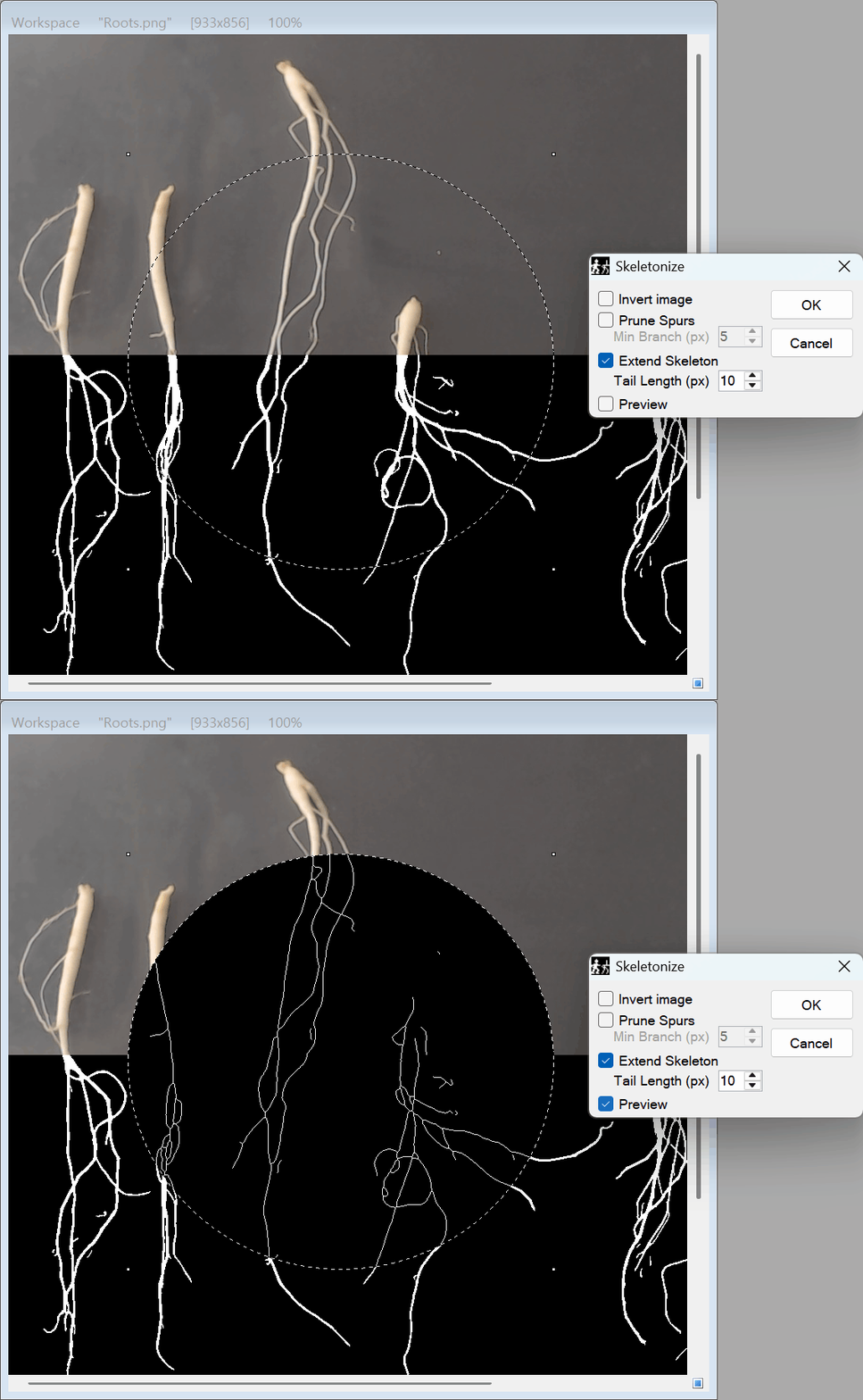
- Zero-Lag Real-Time Preview: See your skeleton pathways generated live on the canvas! Toggle the Preview box to instantly verify your boundaries and adjust parameters—like pruning or extending—before locking in the changes.
- Vector-Based Endpoint Extension (Extended Mode): Standard skeletons often stop slightly short of the original object’s edge. By enabling the Extended option, the algorithm calculates the directional vector of the end points and mathematically extends them. You can customize the Tail Length to precisely control this tracing, guaranteeing end-to-end connectivity for 100% accurate length measurements.
- Prune Spurs: Clean up your skeletons by enabling Prune Spurs. Set a Minimum Branch length to automatically detect and remove tiny, unwanted artifacts or false branches caused by rough or jagged object edges.
- Thread-Safe Parallel Processing: Built for extreme speed, the tool divides its heavy iterative calculations and vector tracing across your CPU’s multi-core architecture. It uses strict local variable scoping to ensure simultaneous erosion without any data collisions.
- Smart Regional Masking: Do you only need to skeletonize a specific network? Simply draw a selection boundary! The tool respects your custom masks, restricting the processing exclusively to your targeted area while leaving the rest of the image untouched.
- Seamless Undo Integration: Connected directly to PhenoCapture AI’s built-in undo engine, allowing you to instantly reverse the complex skeletonization process if you need to adjust your thresholding or try a different masking boundary first.
🛠️ How to Use the Skeletonize Tool
Step 1: Prepare Your Image
For this tool to work effectively, your image does not necessarily need to be strictly binary. Because the tool runs a simple internal binarization algorithm first, it can extract a skeleton directly from a color image. However, for the most accurate and precise results, we highly recommend converting your image to a binary format beforehand using our high-performance binarization tools: Manual Binarization, Adaptive Binarization, Binarization and Segmentation, or Custom Binarization.
Step 2: Draw a Selection Mask (Optional)
If you only want to extract the skeleton of a specific shape or cluster, use the advanced selection tools to draw a boundary around it. If no mask is active, the tool will automatically process the entire workspace.
Step 3: Configure Settings & Preview
Navigate to the menu and open the Skeletonize tool. Check the Preview box to watch the changes happen live, then adjust the following parameters:
- Extended & Tail Length: Check Extended and adjust the Tail Length if you need the skeleton to touch the absolute edges of the original shape for exact measurements.
- Prune Spurs & Min Branch: Check Prune Spurs and increase the Min Branch value to erase tiny, unwanted offshoots and clean up the network.
- Invert Image: Toggle this option if your foreground and background colors need to be swapped for proper morphological analysis.
Step 4: Generate the Skeleton
Once you are perfectly satisfied with the live preview, simply click OK. The engine will instantly initiate the passes, clean up spurs, and extend endpoints based on your exact specifications, transforming your solid shapes into crisp, 1-pixel-thick pathways!