📷 A Complete Guide to the WebCam Live Viewer
PhenoCapture AI’s WebCam Live Viewer isn’t just a simple preview window. It is a highly optimized, zero-lag streaming hub that connects your webcam or external camera directly to the software.
Beyond built-in support for AI virtual backgrounds, color mapping, and rapid snapshot capturing, it acts as a central gateway for advanced automation. You can seamlessly link your live feed to the Time-Lapse Capture, Remote Camera Server, Online Live View, and FTP Image Upload tools for a fully integrated, professional monitoring and broadcasting experience.
Here is everything you need to know to take full advantage of the WebCam Live Viewer.
[Thermal Camera Test]
💡 Key Features
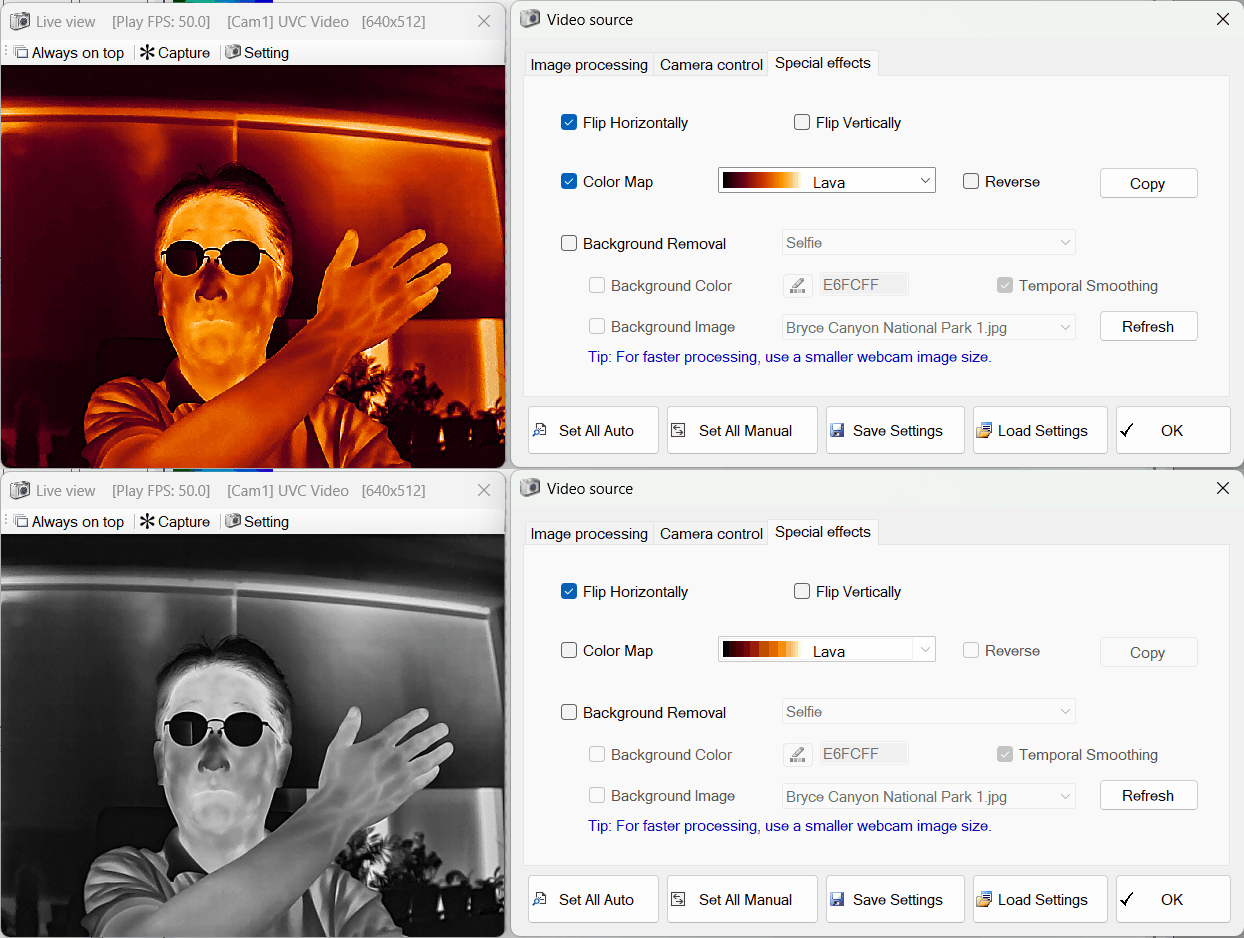
- Zero-Lag Direct Rendering: Even when running heavy software filters or zooming in, the viewer uses advanced, low-level graphics processing to ensure your live feed remains perfectly smooth and instantaneous.
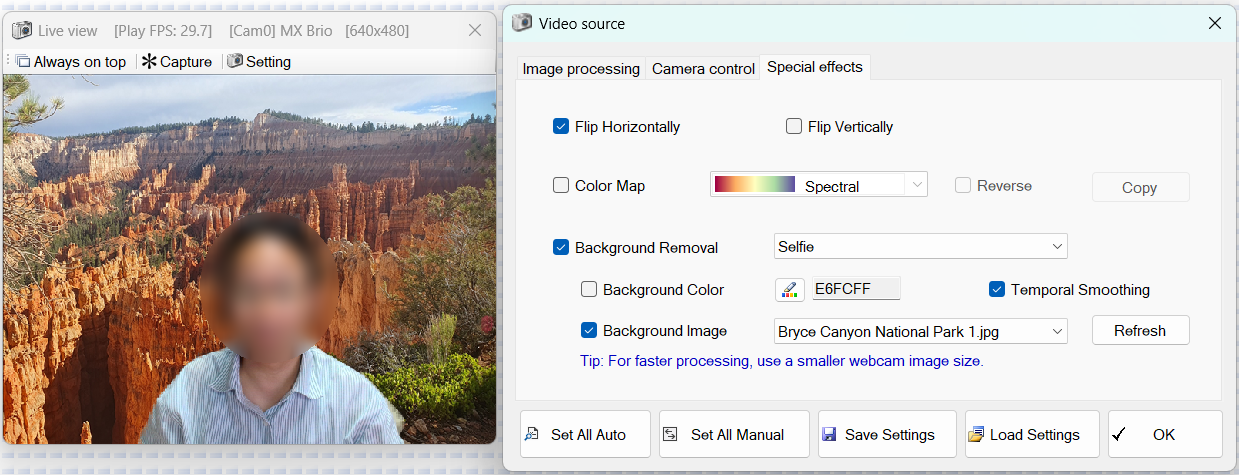
- AI Virtual Backgrounds: Instantly blur your room or replace it with a custom image right from the live feed. The viewer processes complex AI models in real time to keep your subject separated from the background.
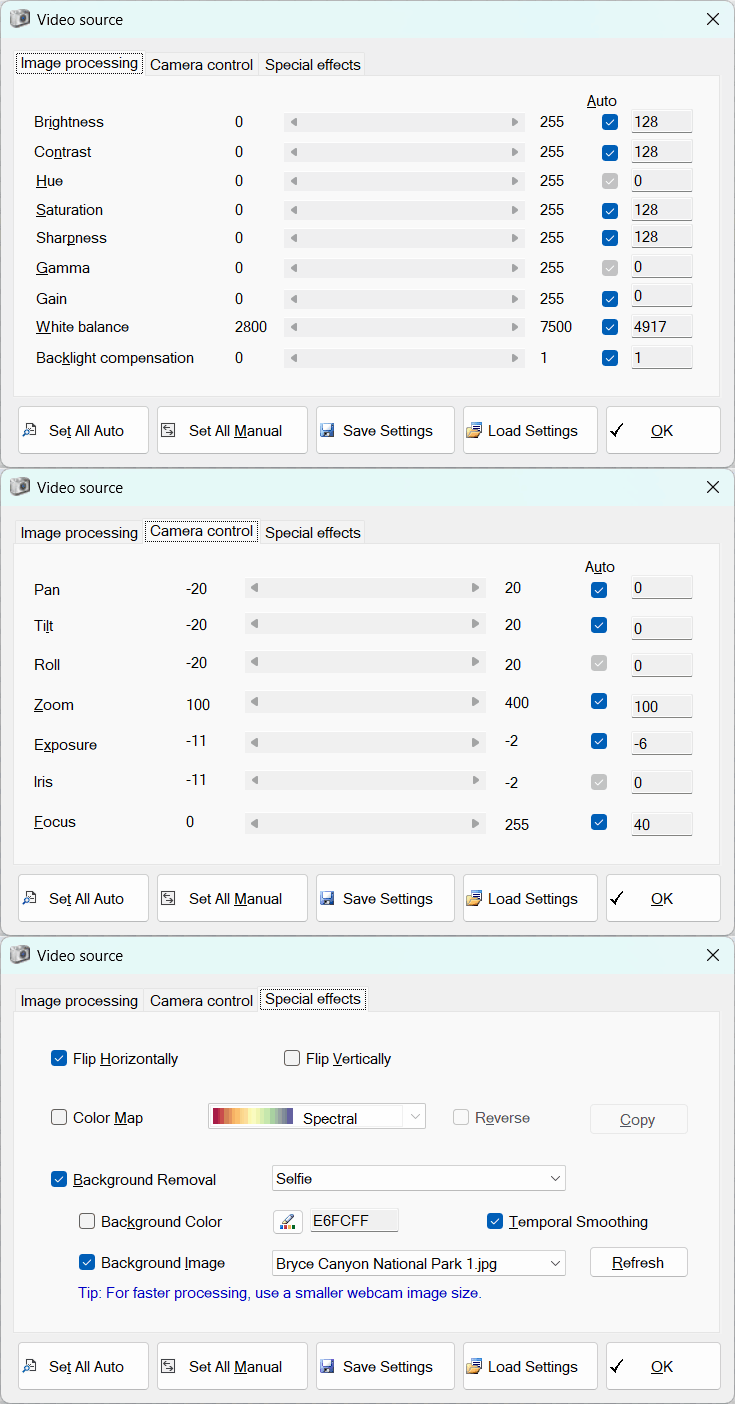
- Smart Color Mapping: Apply dynamic color maps to your live stream. This feature is particularly useful when using thermal cameras (infrared cameras) that output standard grayscale images, as the viewer instantly converts them into stunning color heatmaps or custom color ranges in real-time.
🔄 Integration with Other Powerful Tools
The WebCam Live Viewer is not just a standalone preview tool. It serves as the central camera hub that seamlessly connects with PhenoCapture AI’s other advanced recording and broadcasting features:
- Time-Lapse Capture: Use the live viewer’s camera feed as the primary source to automatically record slow processes over time, setting custom capture intervals and stamping dates onto each frame.
- Remote Camera Server: Transmit your live camera feed securely to another PC across your network, allowing colleagues to remotely monitor or even control the host computer.
- Online Live View: Broadcast your active webcam feed directly to any standard web browser using an automatically generated HTML web link, making external monitoring incredibly easy.
- FTP Image Upload & Auto-Capture: Link the viewer’s feed to automated workflows that capture images upon motion detection or at regular intervals, and upload them continuously to a remote FTP server or save them locally.
🛠️ How to Use the Live WebCam Viewer
Watching your live feed and capturing the perfect image is incredibly intuitive. Follow these steps:
Step 1: Connect Your Camera
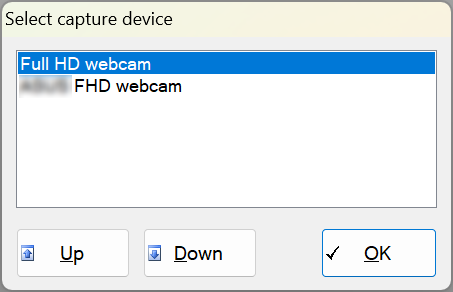
Open the WebCam Viewer. When you first connect your camera through the software’s main menu, a window will pop up asking you to select your capture device. Once you have selected your device, a second settings window will appear where you can choose your camera’s resolution and adjust various other settings to ensure you get the highest quality feed.
Step 2: Use “Always on Top” (Optional)
If you want to keep an eye on your live feed while working in other programs or adjusting PhenoCapture AI settings, click the Always on Top button in the top menu. This locks the viewer window above all other applications.
Step 3: Capture an Image
When you have the perfect shot lined up, simply click the Capture button. The current frame will be instantly snapped and transferred directly to your main PhenoCapture AI workspace for further editing or saving!
With the Live WebCam Viewer, managing your camera feed, applying real-time AI filters, and connecting to powerful automation tools is faster and smoother than ever!